2.3. Export data
- Export dialog
- CSV export
- Excel export (XLSX)
- JSON export
- Insert statement export
- Streamed export
- Limitations
All export formats use the current result set exactly as displayed in the Query Window.
Column order, aliases, selected columns, and transformed values are preserved during export.
The export feature allows you to save query results into external files for further use in analytics, integrations, data exchange, or scripting.
Export is available only from the Query Window, once data has been fetched.
Keyboard shortcut:
⌘/Ctrl+E– open export dialog
Export dialog
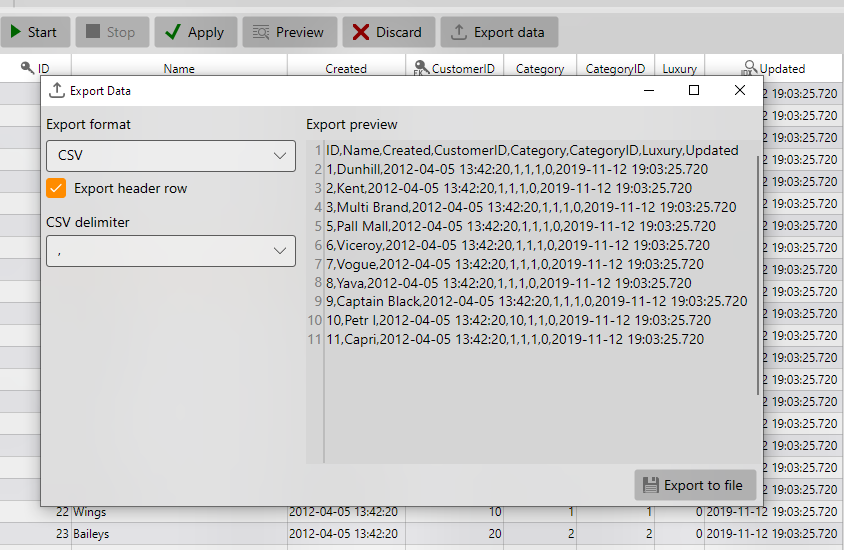
The export dialog lets you preview the first 10 rows of the result set and configure the output format.
Supported formats:
- CSV – with selectable delimiter (
;,,, or tab) and option Export header row - Excel (XLSX) – creates a spreadsheet with all rows and columns
- JSON – produces a UTF-8 encoded JSON array of rows
- Insert statements – generates execute-ready SQL
INSERTstatements with configurable batch size and optional column list - Markdown – generates markdown table
Once you confirm settings, press Export to file. You will be prompted for the file path, and the export will start immediately.
During the process a progress bar is displayed.
CSV export
Exports rows as plain text tabular data with configurable delimiter (;, ,, or tab).
Supports optional header row export using the current result set column names.
Useful for spreadsheet applications, bulk imports, and interoperability with external tools.
Excel export (XLSX)
Exports rows into a native Excel spreadsheet with columns and values preserved from the current result set.
Useful for reporting, manual editing, filtering, sorting, and sharing data with non-technical users.
JSON export
Exports rows as a UTF-8 encoded JSON array where each row is represented as an object.
Column names from the current result set are used as JSON property names.
Useful for APIs, data exchange, scripting, and integration workflows.
Insert statement export
The insert exporter works directly with the current result set.
This means you can prepare data in the exact structure required for another table before exporting.
You can reorder columns, rename columns using aliases, select only required columns, join tables, and transform data before export.
Example:
SELECT
source_id AS id,
source_name AS name,
created_at
FROM source_table
The generated export will use the resulting column order and names:
INSERT INTO target_table (id,name,created_at)
VALUES (...);
This makes the insert exporter useful for:
- Data migration between different schemas
- Preparing import scripts for another database
- Converting query results into reusable SQL scripts
- Generating test datasets
Streamed export
OrmFactory writes results in a streaming mode.
Even very large tables can be exported using only a few megabytes of memory (2–3 MB), compared to gigabytes consumed by conventional libraries such as OpenXML.
This makes it possible to export complete query results without hitting memory limits.
Limitations
- The entire fetched result set is exported. To restrict exported rows, use
LIMIT,TOP,FETCH, or other SQL clauses in your query. - Encoding is always UTF-8.
- Currently there is no option to export only a selected range of rows or columns.